Support Sessions
Live requests from technicians in the field
No active sessions. When a technician taps Request Support, their session appears here.
Support Sessions
Live requests from technicians in the field
Live Call
REF-9F2C · Siemens CT
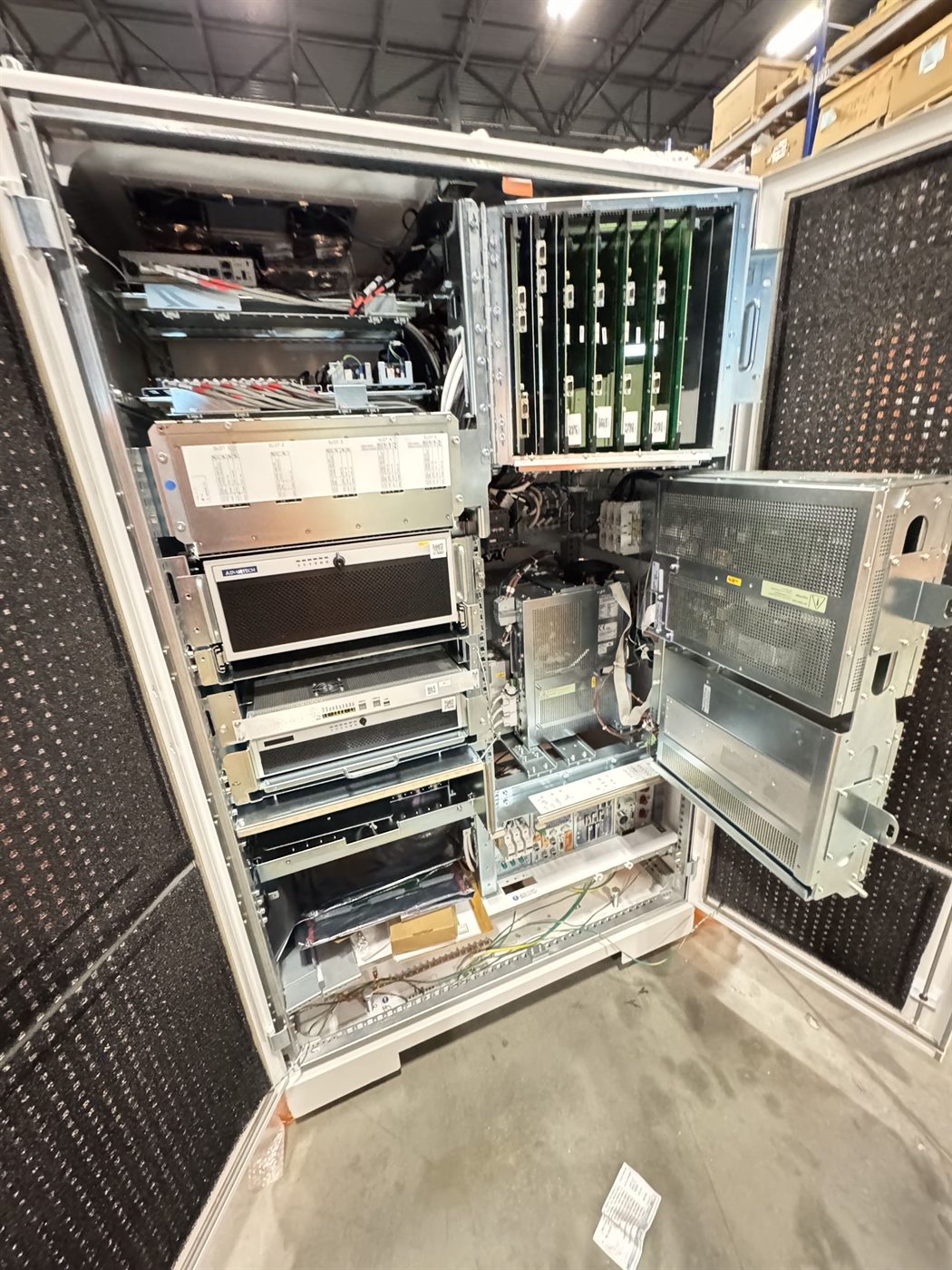 Technician POV
Start the call
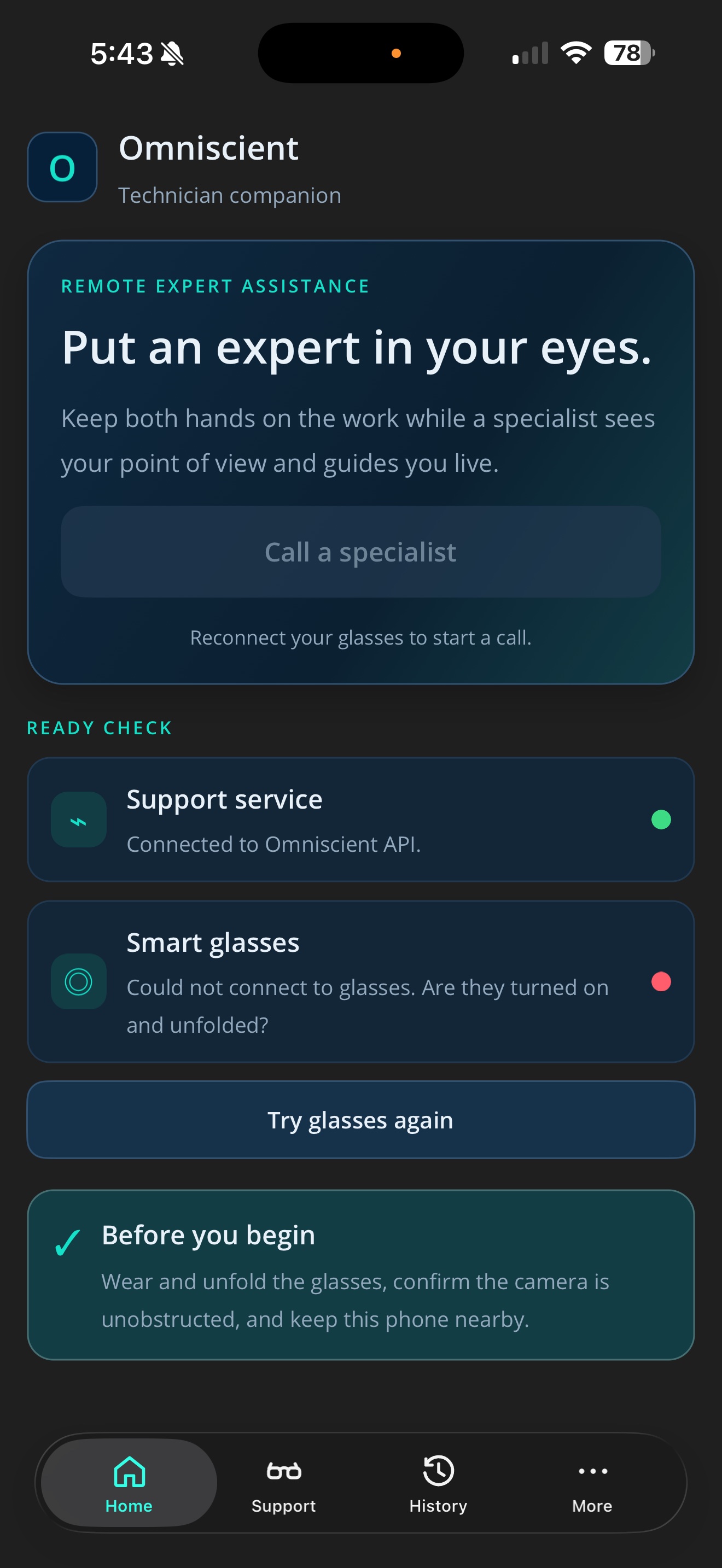
The technician opens Omniscient and taps “Call a specialist.” Hands stay free — the smart glasses stream their point of view.
Say what needs help
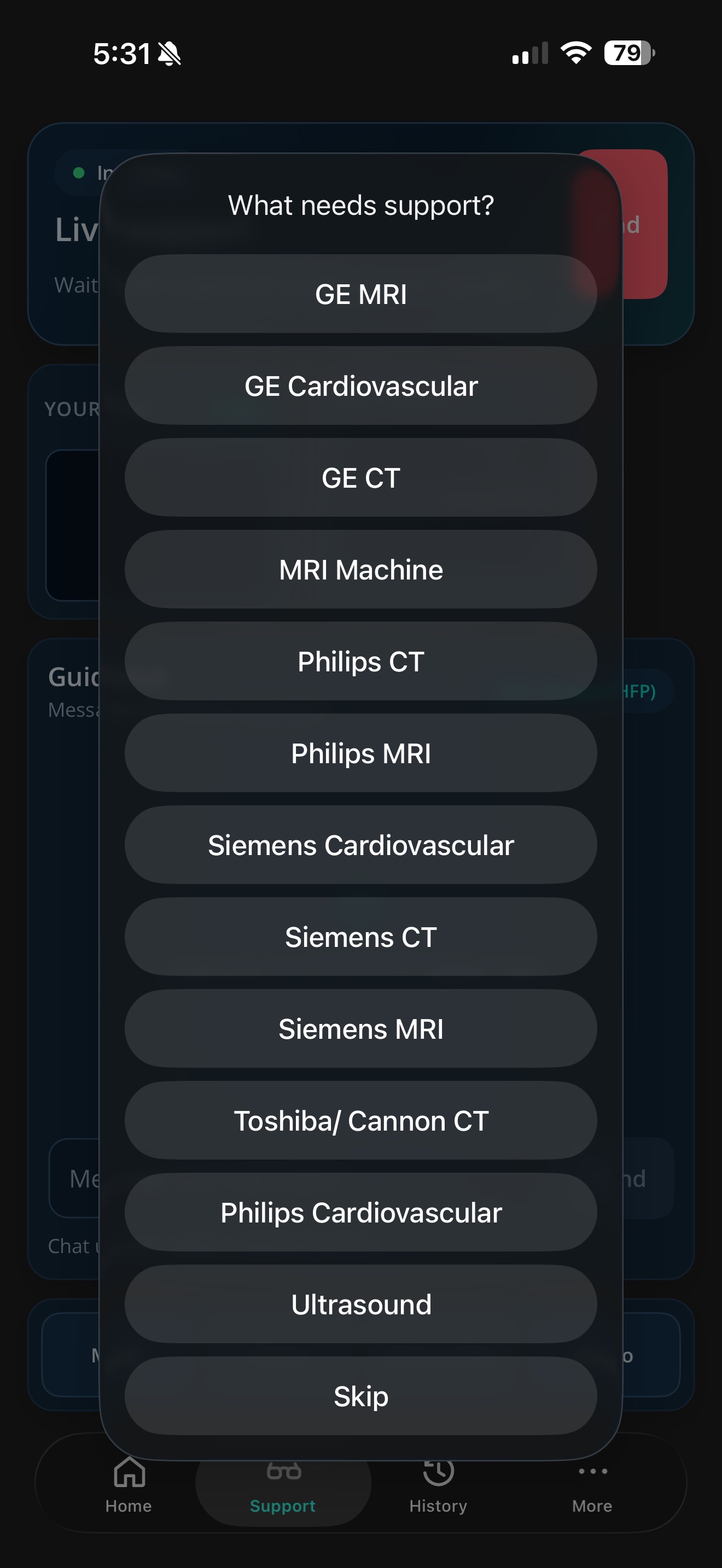
They pick the equipment from “What needs support?” so the specialist knows exactly what they’re walking into.
Request sent
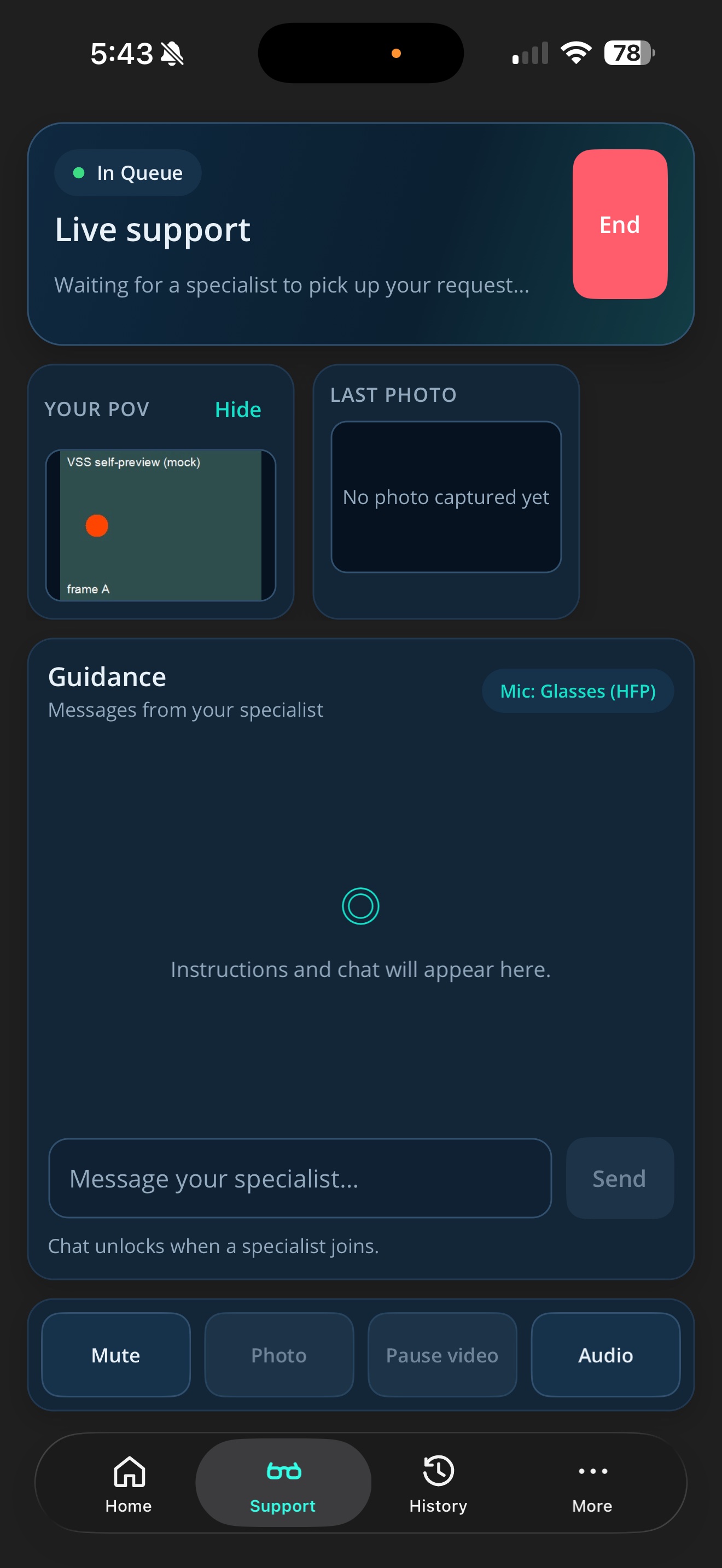
The request goes out and the app waits: “Waiting for a specialist to pick up…” No phone tag, no scheduling.
The request lands
On the specialist console the session appears live in the queue. The expert clicks “Join call” to accept it.
Expert on the call
The specialist sees the technician’s point of view and guides them step by step with voice and chat — capturing photos or recording as needed.